Convergance
Verify model convergence in Alviss AI after training to ensure stable and reliable performance.
After building your first model, it's essential to verify that the model has trained effectively. A key aspect of this is checking for convergence—ensuring the model's learning process stabilizes and reaches an optimal state. In Alviss AI, models typically converge reliably with default settings, making this a rare issue. However, it can occur with very complex models or when adjusting advanced parameters like epochs during training submission.
This tutorial guides you through inspecting convergence using the model's Metrics tab, interpreting key metrics, and troubleshooting if needed. Ensuring convergence leads to more accurate insights for marketing optimization, KPI impact analysis, and data-driven decisions—core strengths of Alviss AI's unified measurement platform.
Understanding Model Convergence
Convergence happens when the model's training loss decreases to a minimal value and stabilizes with minimal fluctuations. This indicates the model has learned effectively from your data without overfitting or underfitting. Poor convergence might result in unreliable predictions, simulations, or attributions, affecting your ability to quantify commercial drivers like media investments or pricing strategies.
In Alviss AI, you can monitor convergence post-training via visual metrics plotted against training epochs (iterations). If issues arise, simple adjustments can refine the process.
Step 1: Accessing the Model Details Page
- Navigate to Models in the side menu of your project.
- Select the model you just trained (e.g., from the list, identified by its name or random ID).
- On the model details page, switch to the Metrics tab.
This tab displays training progress through graphs of various metrics as functions of epochs.
Step 2: Reviewing Key Metrics
The Metrics tab provides a comprehensive view of training and evaluation performance. Focus on these metrics to assess convergence:
- Train Loss: The primary indicator of overall model fit during training.
- Evaluation Loss: Measures performance on holdout (evaluation) data to check generalization.
- Performance Metrics per KPI: Drill-down views for specific KPIs (e.g., sales, revenue).
- R² (Coefficient of Determination): Measures how well the model explains variance (closer to 1 is better).
- Mean Squared Error (MSE): Average squared difference between predicted and actual values (lower is better).
- Root Mean Squared Error (RMSE) : Square root of MSE, in the same units as the KPI (lower is better).
- Bayes R²: A Bayesian variant of R² for probabilistic models.
- Mean Absolute Percentage Error (MAPE): Average percentage error (lower is better).
- Mean Absolute Error (MAE): Average absolute difference (lower is better).
- Weighted Mean Absolute Percentage Error (WMAPE) : Weighted version of MAPE for imbalanced data.
All metrics are plotted over epochs, allowing you to spot trends.
These metrics align with Alviss AI's focus on holistic business modeling, helping you validate impacts on KPIs like sales or churn across commercial activities.
Step 3: Checking Train Loss for Convergence
Start with the Train Loss graph:
-
Look for a steady decline that plateaus at a low value with little variation.
-
Ideal convergence: The line flattens, indicating the model has optimized its parameters.
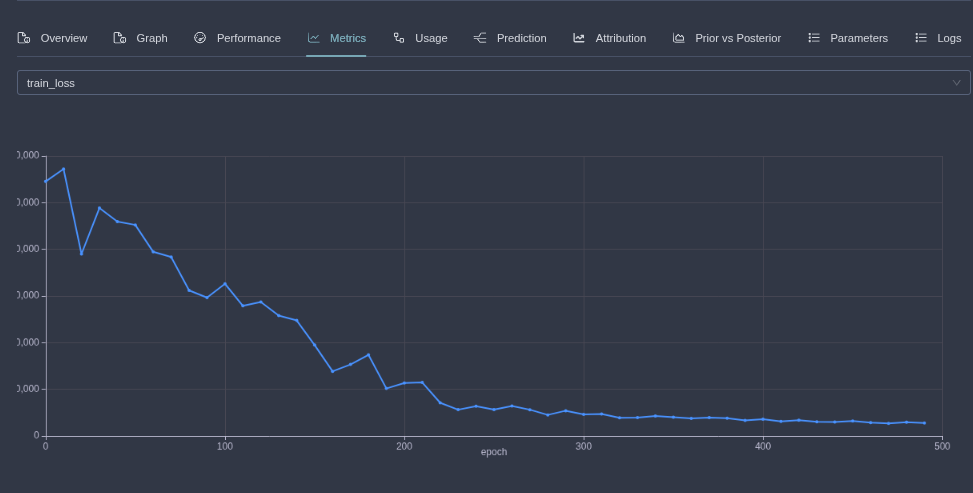
If the Train Loss converges well, proceed to deeper analysis. If not, note the pattern for troubleshooting (see below).
Step 4: Drilling Down into Performance Metrics
Once Train Loss looks stable:
-
Select Train (data from your selected training periods) or Eval (holdout evaluation periods) views.
-
Examine per-KPI metrics (e.g., R², MAPE) over epochs.
-
Ensure these also decline/stabilize, confirming the model performs consistently across your data.
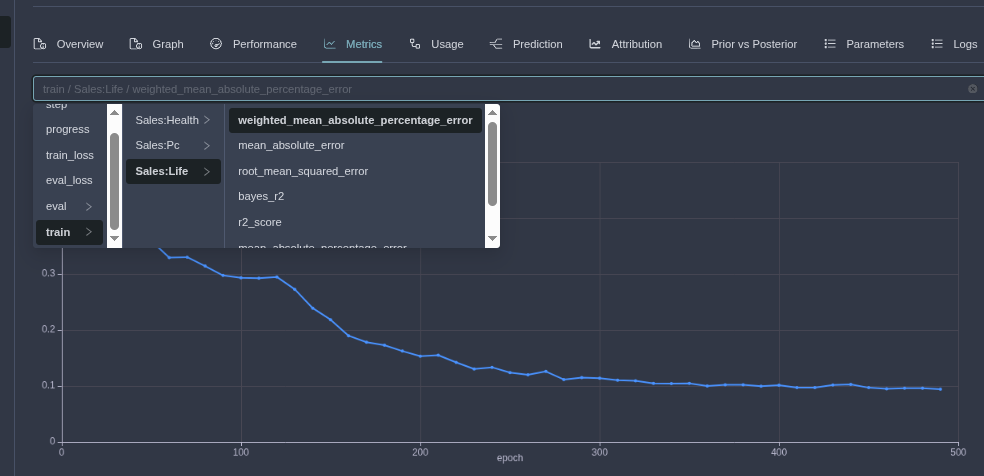
Use filtering in the Metrics tab if your model includes multiple combinations (e.g., by country or region) for targeted inspection.
Troubleshooting Non-Convergence
If metrics don't converge fully, identify the issue from the graphs and adjust:
-
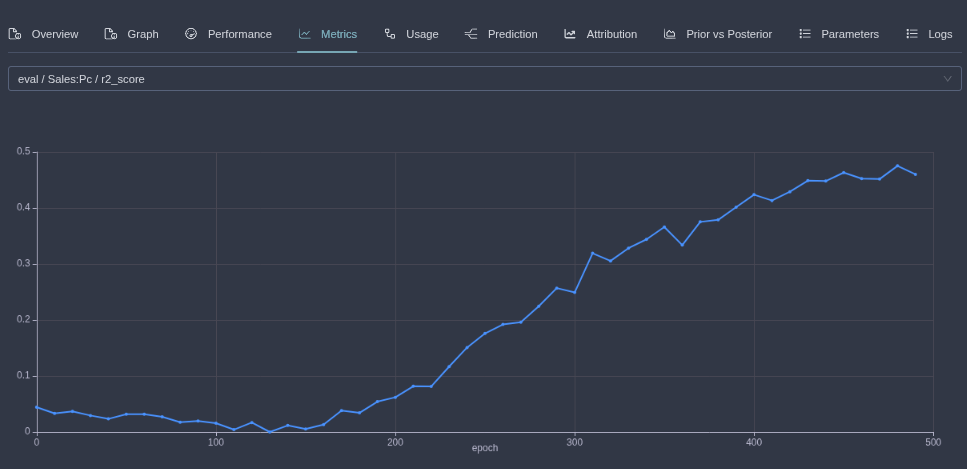
Still Improving but Not Stabilized:
-
Pattern: Loss/metrics continue decreasing without plateauing.
-
Solution: Increase training epochs to allow more iterations.
- On the model details page, go to Actions > Refit Model.
- This resumes training from the last checkpoint, saving time.
- Submit with higher
epochs(e.g., double the original value).
-
-
Unstable or Oscillating:
- Pattern: Loss jumps erratically, indicating instability (e.g., due to high learning rates).
- Solution: Retrain from scratch with adjustments for smoother optimization.
- Create a new model via Models > New Model (use the Advanced Model Builder for fine control).
- Decrease Learning Rate (e.g., to 0.001 or lower) to make updates gentler.
- Reduce Gradient Clipping (e.g., to 1.0) to prevent extreme gradient explosions.
- Increase Epochs to give the model more time to stabilize.
- Submit and monitor the new Metrics tab.
Complex models (e.g., with many variable groups or custom effects) may require these tweaks. Always validate data quality in Activities first, as outliers can mimic convergence issues.
Best Practices for Reliable Convergence
- Stick to defaults initially, as Alviss AI's sensible presets promote convergence.
- For advanced users: Experiment in the Advanced Model Builder, but test small changes.
- After fixes, re-run Attributions or Simulations to confirm improved insights.
- If issues persist, review your Dataset for consistency or consult Alviss AI's hybrid/full service options for expert assistance.
By verifying convergence, you ensure your models deliver accurate, actionable insights—empowering better resource allocation and growth, as highlighted in Alviss AI's platform for marketing and business optimization.
This completes the convergence tutorial. Next in the series: Running Your First Attributions. For more on models, see the full Models documentation. If you have questions, explore the app at https://app.alviss.io or reach out via support.