Uploads
Manage uploaded data files in Alviss AI via the Uploads section for tracking, inspection and integration into Datasets.
Overview
The Uploads section in Alviss AI serves as the central hub for managing all data files you've imported into your project. Accessible via the side menu under Data > Uploads, this page provides a comprehensive view of your uploaded files, allowing you to track metadata, inspect contents, and integrate them into datasets. Each upload corresponds to one of the supported data types (e.g., Sales, Media), and once validated, it becomes available for creating or extending Datasets.
From here, you can review upload details, add notes for context, and dive deeper into data exploration. This ensures transparency and ease of collaboration within your team.
Upload List
Navigate to Data > Uploads to view a list of all files uploaded to the current project. For each upload, the following information is displayed:
- Creator: The team member who uploaded the file.
- Upload Timestamp: The date and time the file was uploaded.
- Data Type: The category of the data, linking to the relevant Files documentation (e.g., Sales, Brand).
- Modeling Combinations: Available combinations of factors like Country, Region, and Grouping, as defined in Modeling Combination. This shows the scope of data coverage for modeling.
- Associated Datasets: Which Datasets include this upload, helping track usage across your workflow.
- Variables: A summary of the key variables or columns present in the upload, useful for quick reference before building models.
Additionally:
- Add Notes: Attach custom notes to any upload for extra details, such as data sources, assumptions, or preprocessing notes. This aids team collaboration and documentation.
- Data Exploration: Open a specific variable or the entire upload in the Data Explorer for interactive visualization and inspection.
Use the search and filter options on the Upload List to quickly locate files by type, uploader, or date. This is especially helpful in larger projects with multiple uploads.
New Upload
To add new data files to your project:
- Navigate to the Upload List by selecting
Data > Uploadsin the side menu, then clickUpload New Datain the upper right corner. - Optionally, set a custom
Nameprefix. This will be applied to all files in the upload batch for easy identification (e.g., "Q3_2025_Sales_Data_"). - Drag and drop files or click to select them in the designated area for the desired data type (e.g., drop a sales CSV into the Sales section).
- Repeat step 3 for as many files and types as needed in this batch.
- Proceed by either:
- Following the guided Dataset creation flow to immediately create or extend a Dataset with the new uploads.
- Navigating back to
Data > Uploadsto review the processed files in the list.
Files undergo automatic validation during upload (see [File Format](Format/File Format.md) for requirements). Successful uploads appear in the list; failures trigger notifications with details.
Ensure files match the required [format](Format/File Format.md) and periodicity of your project to avoid validation issues. See Files for how the different files are supposed to be structured. See [File Format](./Format/File Format.md) for exact details on supported file formats, but a quick summary is:
Supported Formats
- CSV (Comma-Separated Values): Plain text files with comma-separated fields.
Excel may default to semicolons (;) or tabs in some regions—explicitly select comma when saving as CSV.
- Excel: .xlsx (standard Excel format).
In Excel, dates may auto-format based on your locale (e.g., MM/DD/YYYY vs. DD/MM/YYYY). Always export as text or force ISO 8601 (YYYY-MM-DD) to avoid corruption.
Debugging Uploads
If a file fails validation (e.g., due to formatting errors or mismatched data types), use the built-in File Debugger to diagnose and resolve issues. This tool provides detailed error breakdowns, highlighting problematic rows, columns, or values.
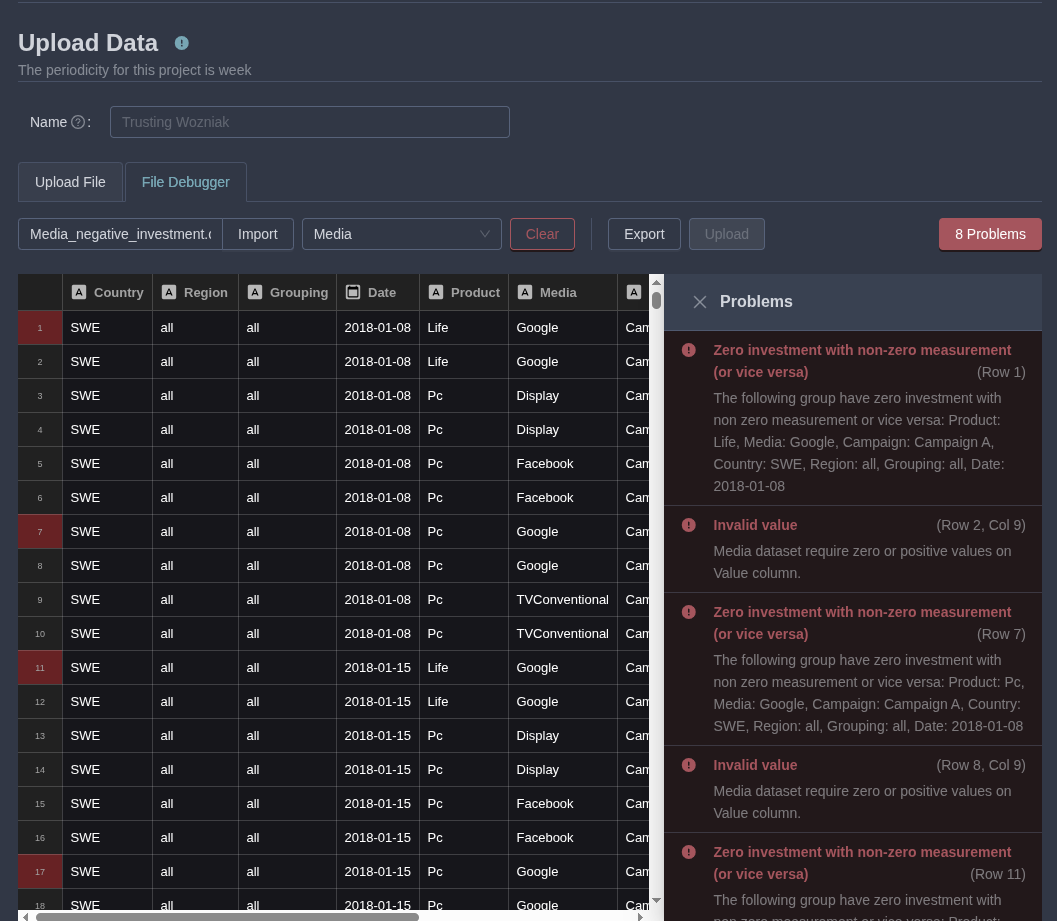
To access the File Debugger:
- From a failed upload in the Upload List, click "Open in File Debugger."
- Alternatively, from the Upload page, select the "File Debugger" tab, upload the problematic file, and choose its data type.
The debugger scans the file and returns:
- Error messages with line/column references.
- Suggestions for fixes (e.g., correct decimal separators or date formats).
- A preview of the data for quick inspection.
- On the right side, one can click on the error and it will go to the relevant error in the file (highlighted in red).
- In the file debugger, one can edit the file "live" and upload it when it passes all the checks.
When all errors are resolved, one can either export the corrected file or upload it directly from the debugger.
Common pitfalls include locale-based formatting in Excel (e.g., dates or separators). Always validate against File Format guidelines before uploading.