Users
Manage your Alviss AI account via Your Account page to update personal details.
You can easily manage your user account by clicking on your profile picture in the top-right corner of the Alviss AI platform and selecting Your Account. This opens your account details page, where you can update personal information, manage security settings, and handle team memberships.
Account Details
On the account details page, view key information such as your username, email address, and associated teams. This section provides a quick overview of your profile and serves as the starting point for further customizations.
Change Password
To update your password:
- Navigate to the Change Password section on the account details page.
- Enter your current password and your new password (following security guidelines, such as minimum length and complexity).
- Confirm the change.
Regularly updating your password enhances account security. If you forget your password, use the recovery options on the login page.
Delete Account
If you need to permanently delete your account:
-
Go to the Delete Account section.
-
Confirm the action after reviewing the warning—this step is irreversible.
Deleting your account removes all associated data, models, datasets, and access to the platform. We recommend exporting any important information (e.g., via Datasets or reports) beforehand.
Leave Team
On the Teams tab, you'll see a list of all teams you're part of. To leave a team:
- Select the team from the list.
- Click Leave Team and confirm.
Leaving a team revokes your access to its projects, datasets, and models. If you're the last admin, consider transferring ownership first to avoid data loss.
Edit Avatar
Customize your profile by adding or changing your avatar:
- In the account details page, click on your current avatar or the upload area.
- Select an image file (supported formats: JPEG, PNG; recommended size: 512x512 pixels).
- Crop and confirm the upload.
Your avatar appears in the platform interface, team lists, and activity logs for easy identification.
Edit Username
To change your username:
- Go to the Edit Username section.
- Enter a new unique username (alphanumeric characters, underscores allowed; 3-20 characters).
- Save the changes.
Usernames are visible to your team and used in logs. Choose one that's professional and memorable.
Managing Access Tokens
Access tokens enable secure API integrations with Alviss AI (see API for details). Manage them at https://app.alviss.io/-/user#access-tokens or via Your Account > Access Tokens.
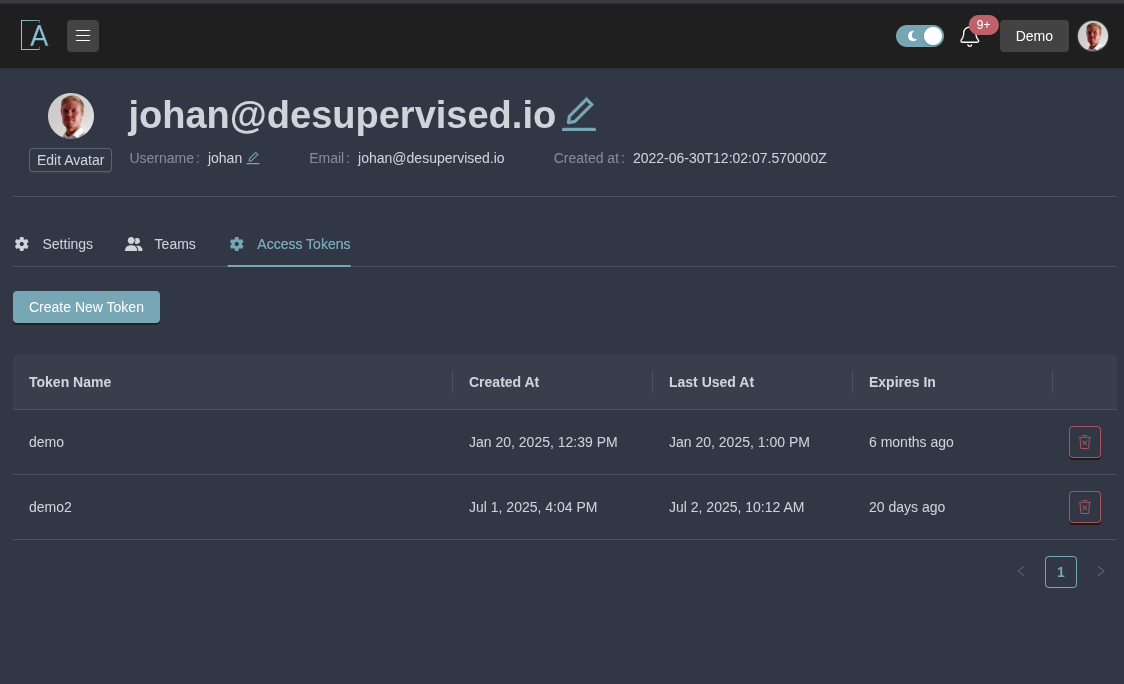
Create Access Token
- Click Create New Token.
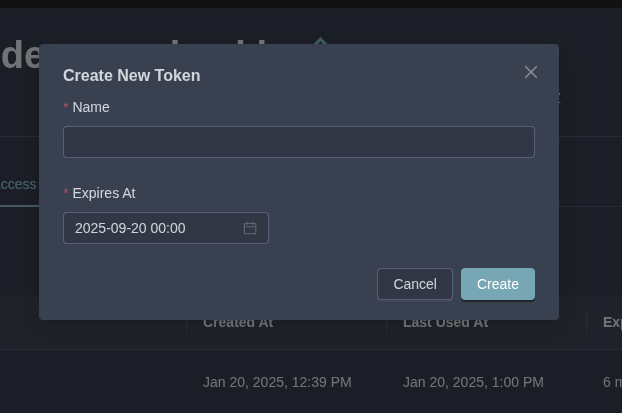
- In the modal:
- Name: Provide a descriptive name (e.g., "API Integration Token").
- Expires At: Set an expiration date (up to 365 days; we recommend short durations for security).
- Submit—the token displays once. Copy and store it securely, as it won't be retrievable later.
Revoke Access Token
To invalidate a token:
- Locate it in the list.
- Click Revoke and confirm.
Revocation is immediate and permanent, useful for compromised tokens or completed tasks.
For best practices, limit token scopes and durations. If you encounter issues, contact support.