Building Your First Model
Build your first model in Alviss AI using the Basic Model Builder for quick and automated setup.
Welcome back to the Alviss AI Getting Started series! Now that you've created your first Dataset, the next step is to build a model. We'll use the Basic Model Builder for this, as it's a quick and efficient way to get started. It automates much of the process with sensible defaults, letting you focus on key decisions while the platform handles the details.
This tutorial will guide you through creating a basic model, from selection to training. Once complete, your model will be ready for insights like Attributions, Simulations, Predictions, and Optimizations.
Step 1: Navigating to Model Creation
-
Log in to Alviss AI and open the project where you created your Dataset.
-
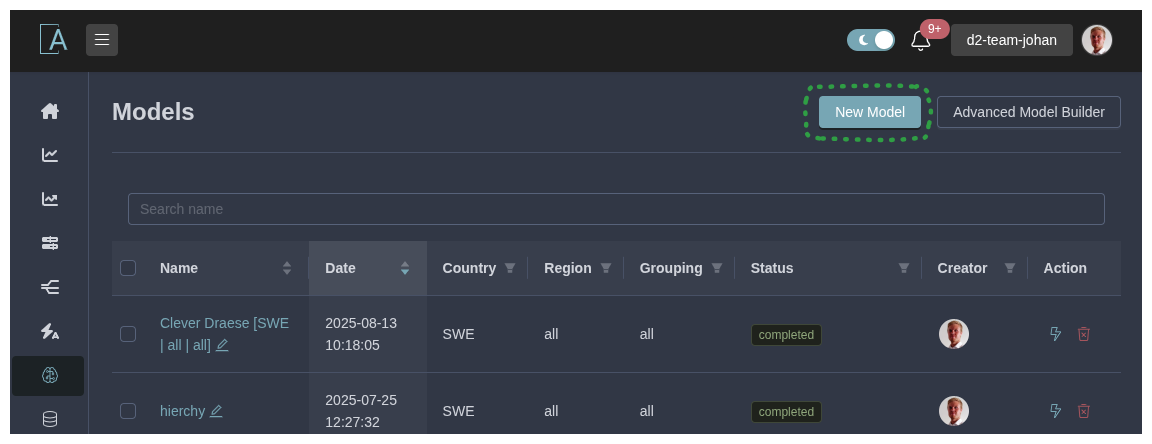
In the side menu, navigate to Models.
-
Click New Model to begin.
Step 2: Setting Model Name and Notes
Optionally, provide a Name for your model (e.g., "Initial Sales Model") and add Notes for bookkeeping. If no name is set, the platform assigns a random one (displayed in gray).
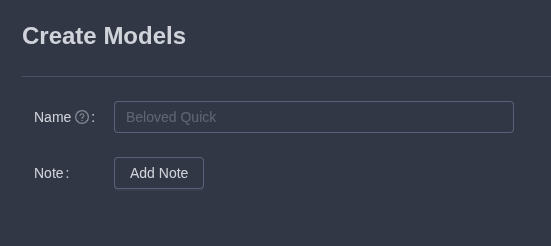
This helps track models as your project grows.
Step 3: Selecting the Dataset
Choose the Dataset to use as the model's foundation. This provides the raw data, such as sales figures, marketing spend, or external factors. Ensure it matches your project's periodicity and has been quality-checked (e.g., via the Activities dashboard).
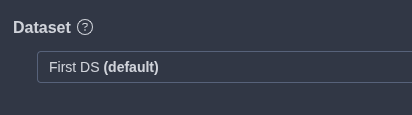
If your Dataset isn't listed, double-check it's activated or create a new one following the previous tutorial.
Step 4: Defining Modeling Combinations
Specify the [modeling combinations](../../docs/Models/Modeling Combination) based on dimensions like country, region, or grouping. For each unique combination (e.g., "SWE - all - all"), Alviss AI builds a dedicated model. This enables granular insights while scaling across your data.
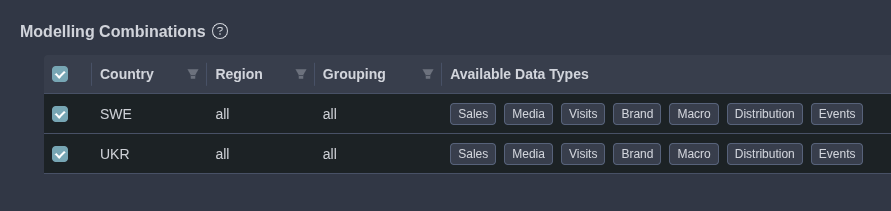
Combinations allow tailored modeling—e.g., separate models for different regions if their data behaves independently.
Step 5: Selecting Target Variables
If your Dataset includes multiple sales variables, choose which ones to model as targets (e.g., revenue or units sold). By default, all available sales variables are included.
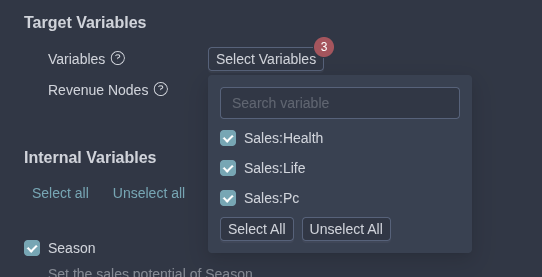
This defines the KPIs your model will predict or analyze.
Step 6: Configuring Input Variable Groups
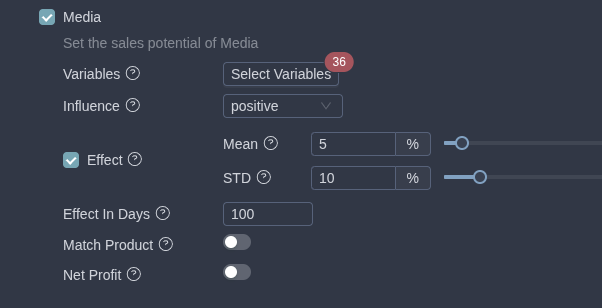
Define groups of input variables from your Dataset to include in the model. Examples include Media (ad spend), Season (holiday effects), Trend (market shifts), Pricing, and more.
Sub-Configurations for Variable Groups
-
Variables: Select specific variables within the group to use. If not specified, all are included.
-
Influence: Set how the group impacts the KPI:
- Positive: Increases lead to higher sales (e.g., media investments).
- Negative: Increases lead to lower sales (e.g., competitor distribution).
- Neutral: Could go either way (e.g., weather).
This enforces behavior in the model—e.g., positive influences won't produce negative effects.
-
Effect: Toggle on to estimate how much of the sales variance is explained by this group.
Enabling "Effect" for more groups increases training time but doesn't affect runtime for Simulations or Predictions.
- Other Configs: Group-specific options may appear, such as:
- Effect In Days: For media, specify how many days into the future an investment impacts sales.
- Match Product: Align variables to specific products in the KPI; unmatched ones are excluded.
- Net Profit: Create a "NetProfit" node (Profit - Investments) for display in dashboards as a response metric.
Customize these to fit your data's nuances.
Step 7: Setting the Date Range
Define the data periods for training and holdout (validation). You can select multiple periods, even with gaps.
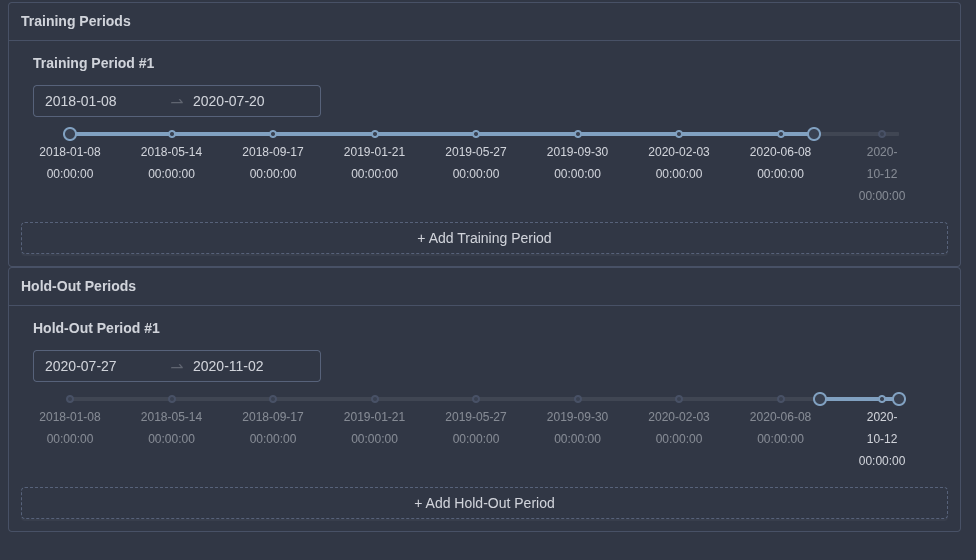
Holdout data helps evaluate model performance on unseen data. Gaps are fine if your data has natural breaks (e.g., seasonal pauses).
Step 8: Creating and Monitoring the Model
- Review your selections.
- Click Create to submit the model for training.
The model will progress through states:
- Submitted: Queued for training.
- Running: Actively training.
- Completed: Ready to use.
- Failed: An error occurred—check the model details page for messages.
Once Completed, navigate to the model's details to view results such as
- Performance metrics
- Fit Prediction
- Attribution of model
Training time varies based on Dataset size and configurations (e.g., more "Effect" groups). Monitor progress in the Models list.
This completes the model-building tutorial. If you want to better understand how to inspect the model have a look at the following tutorials.